 true_lock
25 KiB



Read this in other languages.









































































First Contributions
Dieses Projekt zielt darauf ab, Anfängern den Einstieg zu erleichtern und sie bei ihrem ersten Beitrag zu unterstützen. Wenn du deinen ersten Beitrag leisten möchten, befolge die folgenden Schritte.
Wenn du nicht weißt wie man das Terminal/CMD bedient, hier sind tutorials für GUI Tools.
Wenn du Git nicht auf deinem System installiert hast, installiere es.
Forke dieses Repository
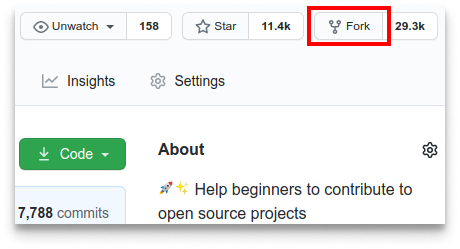
Forke dieses Repository indem du auf den Fork Button oben auf dieser Seite klickst. Dies wird eine Kopie dieses Repository's in deinem Account erstellen.
Klone das Repository
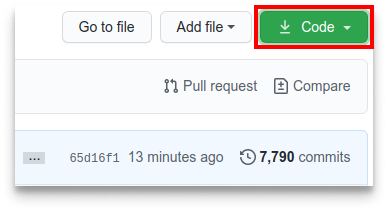
Klone jetzt das geforkte Repository auf deinen Computer. Gehe zu dienem Github Account, öffne das geforkte Repository, drücke auf den Code Button, dann auf den SSH Tab und dann drücke auf das copy url to clipboard icon.
Öffne ein Terminal Fenster und führe den folgenden Git Befehl aus:
git clone "kopierte url"
wobei "kopierte url" (ohne die Anführungszeichen) die url zu diesem Repository ist (deine Fork von diesem Projekt). Im vorherigen Schritt siehst du wie du diese erhälst .
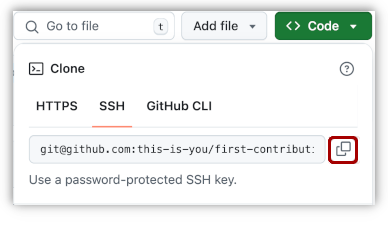
Zum Beispiel:
git clone git@github.com:das-bist-du/erster-Beitrag.git
wobei das-bist-du dein Github Nutzername ist. Hier kopierst du den Inhalt des first-contributions Repository's auf Github auf deinen Computer.
Erstelle einen Zweig
Wechsle zum Repository Ordner (wenn du nicht bereits dort bist):
cd first-contributions
Erstelle nun einen Zweig, indem du den git switch Befehl benutzst:
git switch -c dein-neuer-zweig-name
Zum Beispiel:
git switch -c add-alonzo-church
Wenn du auf irgendeinen Fehler bei der Nutzung von `git switch` stößt, drücke hier:
Wenn die Fehlermeldung "Git: switch is not a git command. See git –help" auftaucht, liegt dies wahrscheinlich daran das du eine veraltete Version von Git nutzt.
In diesem Fall versuche stattdessen git checkout zu nutzen:
git checkout -b dein-neuer-zweig-name
Make necessary changes and commit those changes
Now open Contributors.md file in a text editor, add your name to it. Don't add it at the beginning or end of the file. Put it anywhere in between. Now, save the file.
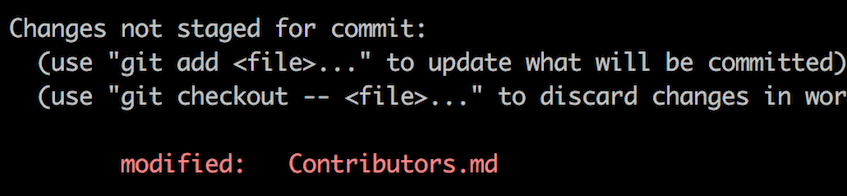
If you go to the project directory and execute the command git status, you'll see there are changes.
Add those changes to the branch you just created using the git add command:
git add Contributors.md
Now commit those changes using the git commit command:
git commit -m "Add your-name to Contributors list"
replacing your-name with your name.
Push changes to GitHub
Push your changes using the command git push:
git push -u origin your-branch-name
replacing your-branch-name with the name of the branch you created earlier.
If you get any errors while pushing, click here:
-
Authentication Error
remote: Support for password authentication was removed on August 13, 2021. Please use a personal access token instead.
remote: Please see https://github.blog/2020-12-15-token-authentication-requirements-for-git-operations/ for more information.
fatal: Authentication failed for 'https://github.com//first-contributions.git/'
Go to GitHub's tutorial on generating and configuring an SSH key to your account.
Also, you might want to run 'git remote -v' to check your remote address.
If it looks anything like this:
origin	https://github.com/your-username/your_repo.git (fetch)
origin	https://github.com/your-username/your_repo.git (push)
change it using this command:
git remote set-url origin git@github.com:your-username/your_repo.gitOtherwise you'll still get prompted for username and password and get authentication error.
Submit your changes for review
If you go to your repository on GitHub, you'll see a Compare & pull request button. Click on that button.
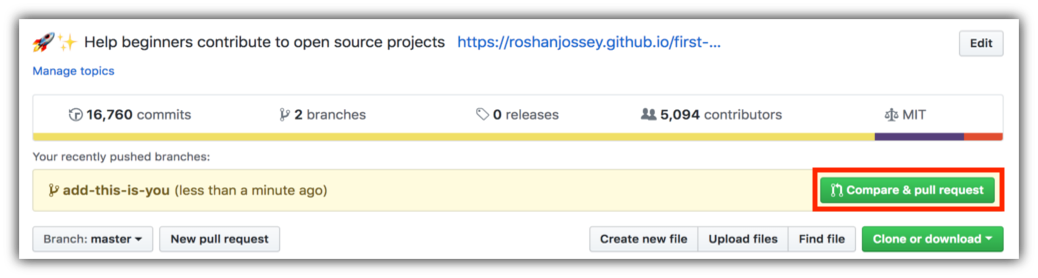
Now submit the pull request.
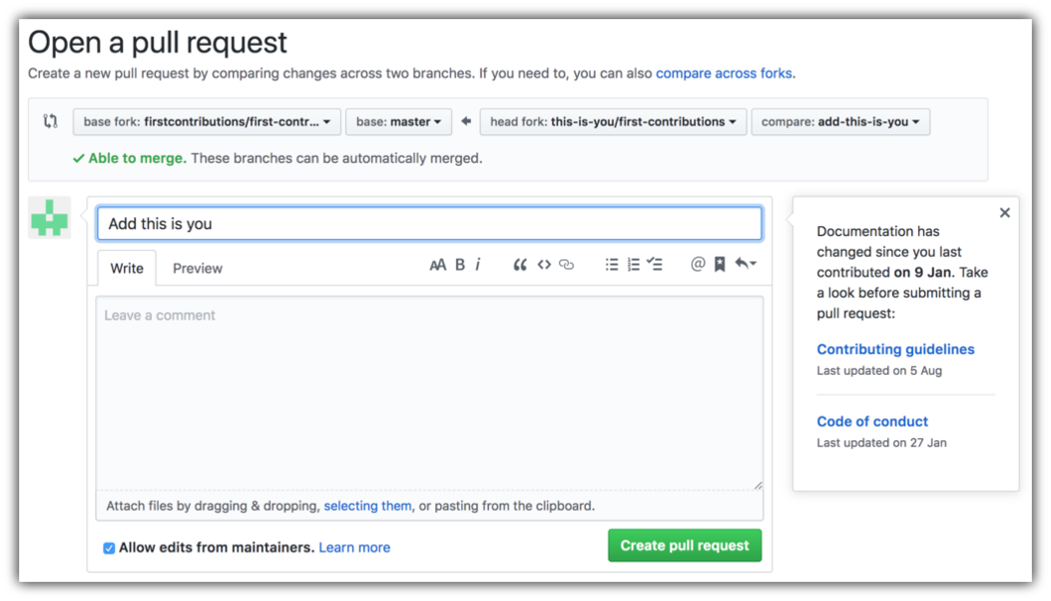
Soon I'll be merging all your changes into the main branch of this project. You will get a notification email once the changes have been merged.
Where to go from here?
Congrats! You just completed the standard fork -> clone -> edit -> pull request workflow that you'll often encounter as a contributor!
Celebrate your contribution and share it with your friends and followers by going to web app.
If you'd like more practice, checkout code contributions.
Now let's get you started with contributing to other projects. We've compiled a list of projects with easy issues you can get started on. Check out the list of projects in the web app.
Zusätzliches Material
Tutorials mit anderen Tools
 |
 |
 |
 |
 |
 |
|---|---|---|---|---|---|
| GitHub Desktop | Visual Studio 2017 | GitKraken | Visual Studio Code | Atlassian Sourcetree | IntelliJ IDEA |
Dieses Projekt wird unterstützt von:
